Select * from information_schema.tables;
Select Table_name from information_schema.tables
Where table_schema='public';
Select * from information_schema.columns;
Select column_name, data_type from information_schema.columns
where table_name='grantapplication';
Select sequence_name from information_schema.sequences;

Select column_name, data_type, constraint_name, constraint_Type
From information_schema.columns
Join information_schema.table_constraints
on information_schema.columns.table_name=information_schema.table_constraints.table_name
where information_schema.columns.table_name='grantapplication'
Order by column_name;

Select * from pg_catalog.pg_tablespace;
Select * from pg_catalog.pg_extension;
Showing posts with label ITC226. Show all posts
Showing posts with label ITC226. Show all posts
Wednesday, July 10, 2019
System Queries

Sunday, July 7, 2019
Advanced Query code
/******************************
* Set Operations
******************************/
CREATE TEMP TABLE email
(firstname text,
lastname text,
email text);

INSERT INTO email(firstname, lastname, email)
values('Jordan', 'Lawrence', 'jordanl@gmail.com'),
('Tammy', 'Standish', 'tstandish@msn.com'),
('Lester', 'Roberts', 'lr@yahoo.com'),
('Lynn', 'Kellerman', 'kellerman@gmail.com');

SELECT lastname, firstname, email, 'temptable' as tblSource from email
UNION
SELECT PersonLastname, personfirstname, personemail, 'Persontable'
FROM person
JOIN personaddress
USING (personkey)
WHERE personaddressCity='Bellevue';

SELECT Personlastname lastname,
personfirstname firstname,
personemail email,
'donor' "role"
FROM person
JOIN donation USING(personkey)
Where donationamount >=2000
UNION
SELECT Personlastname lastname,
personfirstname firstname,
personemail email,
'client'
FROM person
JOIN grantapplication USING(personkey)
WHERE granttypekey=2;

SELECT personkey, personlastname, personfirstname
FROM person
JOIN donation USING(personkey)
INTERSECT
SELECT personkey, personlastname, personfirstname
FROM person
JOIN grantapplication USING(personkey);

SELECT personaddresscity
FROM personaddress
JOIN person USING (personkey)
JOIN donation USING (personkey)
INTERSECT
SELECT personaddresscity
FROM personaddress
JOIN person USING (personkey)
JOIN grantapplication USING (personkey);

SELECT personaddresscity
FROM personaddress
JOIN person USING (personkey)
JOIN donation USING (personkey)
EXCEPT
SELECT personaddresscity
FROM personaddress
JOIN person USING (personkey)
JOIN grantapplication USING (personkey);

SELECT granttypename FROM granttype
EXCEPT
SELECT granttypename FROM grantapplication
JOIN granttype USING (granttypekey);
/*****************************
* Windows Functions
*****************************/

SELECT granttypename, grantapplicationkey, grantapplicationamount,
RANK() OVER (PARTITION BY granttypeName ORDER BY Grantapplicationamount DESC)
FROM grantapplication
JOIN granttype ON granttype.granttypekey=grantapplication.granttypekey
WHERE granttypename='Food';

SELECT granttypename, grantapplicationkey, grantapplicationamount,
DENSE_RANK() OVER (PARTITION BY granttypeName ORDER BY Grantapplicationamount
DESC)
FROM grantapplication
JOIN granttype ON granttype.granttypekey=grantapplication.granttypekey
WHERE granttypename='Food';

SELECT grantapplicationkey, granttypename, grantapplicationamount,
ROW_NUMBER() OVER(ORDER BY grantapplicationkey)
FROM grantapplication
JOIN granttype using(granttypekey);

SELECT grantapplicationkey, granttypename, grantapplicationamount,
ROW_NUMBER() OVER(ORDER BY grantapplicationamount)
FROM grantapplication
JOIN granttype using(granttypekey);

SELECT *
FROM
(SELECT grantapplicationkey, granttypename, grantapplicationamount,
ROW_NUMBER() OVER(ORDER BY grantapplicationamount)
FROM grantapplication
JOIN granttype using(granttypekey))grants
WHERE ROW_NUMBER BETWEEN 20 and 30;

SELECT *
FROM
(SELECT grantapplicationkey, granttypename, grantapplicationamount,
ROW_NUMBER() OVER(ORDER BY grantapplicationamount)
FROM grantapplication
JOIN granttype using(granttypekey))grants
WHERE ROW_NUMBER BETWEEN 20 and 30;

SELECT granttypename, grantapplicationamount,
LAST_VALUE(grantapplicationamount) OVER
(PARTITION BY granttypekey ORDER BY Grantapplicationamount
RANGE BETWEEN UNBOUNDED PRECEDING AND UNBOUNDED FOLLOWING)
FROM grantapplication
JOIN granttype using(granttypekey);

/**************************************
* Pivot table with CROSSTAB
*************************************/

CREATE TEMP TABLE applications2018
(
GranttypeName TEXT,
applicationdate DATE,
applciationamount NUMERIC
);


INSERT INTO applications2018
SELECT Granttypename, grantapplicationDate, grantapplicationamount
FROM grantapplication
JOIN granttype ON granttype.granttypekey = grantapplication.granttypekey
WHERE EXTRACT (YEAR FROM grantapplicationdate)=2018;

SELECT *
FROM CROSSTAB('SELECT EXTRACT(MONTH FROM applicationdate)::INTEGER,
granttypename, SUM(applciationamount)
FROM applications2018
GROUP BY 1,2 ORDER BY 1, 2')
FINAL_RESULT(Month INTEGER, Food NUMERIC, Rent NUMERIC, School NUMERIC,
Dental NUMERIC, Medical NUMERIC, Childcare NUMERIC ,Misc NUMERIC );

CREATE TEMP TABLE citydonations
(
"Month" Integer,
city text,
amount numeric
);

CREATE TEMP TABLE citydonations
(
"Month" Integer,
city text,
amount numeric
);

INSERT INTO citydonations
SELECT EXTRACT(MONTH FROM Donationdate), PersonaddressCity, donationamount
FROM (
SELECT DINSTINCT ON(donationkey)
donationkey,
donationdate,
personaddresscity,
donationamount
FROM donation
JOIN personaddress
USING (personkey)
) donations;


SELECT *
FROM CROSSTAB('SELECT "Month" :: INTEGER,

City, SUM(amount) FROM citydonations
GROUP BY 1,2
ORDER BY 1, 2')
FINAL_RESULT(Month INTEGER,
Seattle NUMERIC,
Redmond NUMERIC,
"New York" NUMERIC,
Bellevue NUMERIC,
Tukwilla NUMERIC,
Kent NUMERIC);
Tuesday, August 8, 2017
Links to Open source databases
http://blog.capterra.com/free-database-software/
https://www.postgresql.org/about/
https://firebirdsql.org
http://www.itworld.com/article/2827484/enterprise-software/six-free-open-source-databases-with-commercial-quality-features.html
https://mariadb.com
http://www.cubrid.org/
Tuesday, August 1, 2017
Full text Catalogs
Use Master
Create Database FullTextExample

Alter Database FullTextExample
Add FileGroup FullTextCatalog

use FulltextExample

Create Table TextTable
(
    TextTableKey int identity(1,1) primary key,
 TextExample nvarchar(255)
)

Insert into TextTable(TextExample)
Values('For test to be successful we must have a lot of text'),
('The test was not successful. sad face'),
('there is more than one test that can try a man'),
('Success is a relative term'),
('It is a rare man that is always successful'),
('The root of satisfaction is sad'),
('men want success'),
('We successfully completed the test'),
('Sadly, the test was difficult')

Insert into TextTable(TextExample)
Values('Best not to rest on ones successes'),
('The test is complete')


Create fulltext catalog TestDescription
on FileGroup FullTextCatalog

Create Fulltext index on TextTable(TextExample)
Key index [PK__TextTabl__B25F440D6815A9C6]
on TestDescription
with change_tracking auto

Select textTableKey, TextExample from TextTable
Where Freetext(textExample, 'sad')

Select TexttableKey, TextExample
From TextTable
Where FreeText(TextExample, 'successful')

Select TextTableKey, TextExample
From TextTable
Where Contains(TextExample, '"success"')

Select TextTableKey, TextExample
From TextTable
Where Contains(TextExample, '"success*"')

Select TextTableKey, TextExample
From TextTable
Where Contains(TextExample, ' Formsof (Inflectional, Man)')

Select TextTableKey, TextExample
From TextTable
Where Contains(TextExample, ' Formsof (Inflectional, Complete)')

Select TextTableKey, TextExample
From TextTable
Where Contains(TextExample, ' near (try, man)')

Select TextTableKey, TextExample
From TextTable
Where Contains(TextExample, ' near ((man, successful), 2)')

select * from sys.dm_fts_index_keywords (db_id(),object_id('TextTable'))
order by Document_count desc
Thursday, July 20, 2017
Security
/****************************
login  Authentication and Authorization
Login --server user mapped to the login and is for a database
Windows Authentication--Active directory
Sql Server Authentication--password username

Roles --Collections of Permissions
Schema -- ownership of a collection of objects

Community_Assist
Admin
Reviewers SELECT UPDATE DELETE INSERT DROP CREATE ALTER EXEC

Volunteers
Clients
General--public
Donors

What kinds of views would people have
Stored Procedures, How interact

Role
Schema
*/

--schema
use Community_Assist
Go
Create schema ClientSchema
go
Create view ClientSchema.vw_GrantType
As
Select * from GrantType
go
Select * from ClientSchema.vw_GrantType
Go
Create proc ClientSchema.usp_grantStatus
@PersonKey int
As
Select GrantTypeName [GrantType],
GrantRequestDate [Date],
GrantRequestExplanation [Explanation],
GrantRequestAmount Amount,
GrantRequestStatus [Status],
GrantAllocationAmount Allocation
From GrantType gt
inner join GrantRequest req
on gt.GrantTypeKey=req.GrantTypeKey
inner join GrantReview rev
on req.GrantRequestKey=rev.GrantRequestKey
Where personkey = @PersonKey

exec ClientSchema.usp_grantStatus 1

Create role ClientRole

Grant Select, execute on Schema::ClientSchema to ClientRole

Create Role GeneralUserRole
Grant Select on GrantType to GeneralUserRole
Grant Select on vw_Donations to GeneralUserRole
Grant insert on Person to GeneralUserRole

Create login Jody with password='P@ssword1',
default_database=Community_Assist

Create user Jody for login jody with default_schema=ClientSchema
exec sp_AddRoleMember 'ClientRole','jody'
Thursday, July 13, 2017
Database Snapshots
use master

Create database Community_Assist_Snapshot
on
(name='Community_Assist',
Filename='C:\Program Files\Microsoft SQL Server\MSSQL12.ITC224_6\MSSQL\DATA\Community_Assist_snapshot.ds')
As
snapshot of Community_Assist

Use Community_Assist_Snapshot

Select * from Person

Use Community_Assist
update person
Set PersonFirstName ='jason'
where personkey=1

use Master
Restore database Community_Assist
from Database_snapshot = 'Community_Assist_Snapshot'
Views and procedures for reports
--report donations
--Grant requests
--amounts requested vs amount granted
--Employee hr
--Donors
--Grants per type

Use Community_Assist
go
Alter view vw_Donations
As
Select Year(DonationDate) [Year],
Month(DonationDate) [Month],
Sum (DonationAmount) Total
From Donation
group by Year(DonationDate), Month(donationDate)

Select * from vw_Donations
go
Alter view vw_GrantRequests
As
SELECT
Year(GrantRequestDate) [Year]
, Month(GrantRequestDate) [Month]
, Sum(GrantRequestAmount) Request
, Sum(GrantAllocationAmount) Allocation
From GrantRequest gr
inner join GrantType gt
on gr.GrantTypeKey=gt.GrantTypeKey
inner join GrantReview grev
on gr.GrantRequestKey=grev.GrantRequestKey
group by Year(GrantRequestDate)
, Month(GrantRequestDate)


Select * from vw_GrantRequests

go
Create View vw_GrantTypeTotals
As
Select Year(GrantRequestDate) [Year]
, GrantTypeName
, sum(GrantRequestAmount) Request
, sum(GrantAllocationAmount) Allocation
From GrantRequest gr
inner join GrantType gt
on gr.GrantTypeKey=gt.GrantTypeKey
inner join GrantReview grev
on gr.GrantRequestKey=grev.GrantRequestKey
group by Year(GrantRequestDate)
, GrantTypeName

Select * from vw_GrantTypeTotals

Create View vw_Employees
As
Select PersonLastName [Last Name]
,PersonFirstName [First Name]
,PersonEmail Email
,EmployeeHireDate [Hire Date]
,EmployeeAnnualSalary Salary
,PositionName [Position]
From Person p
inner join Employee e
on p.PersonKey=e.PersonKey
inner join EmployeePosition ep
on e.EmployeeKey=ep.EmployeeKey
inner join Position pos
on ep.PositionKey=pos.PositionKey

Select * from vw_Employees

Use MetroAlt

Select * from RiderShip
Select * from Fare

Create view vw_AnnualRevenues
as
Select Year(BusScheduleAssignmentDate) [Year],
format(Sum(Riders * FareAmount),'$ #,##0.00') TotalFares
From BusScheduleAssignment bsa
inner join Ridership r
on bsa.BusscheduleAssignmentKey=r.[BusScheduleAssigmentKey]
inner join Fare f
on f.FareKey=r.FareKey
Group by Year(BusScheduleAssignmentDate)

Select * from busRoute
go
Create view vw_RevenuesByCity
As
Select Year(BusScheduleAssignmentDate) [Year],
BusRouteZone [City],
format(Sum(Riders * FareAmount),'$ #,##0.00') TotalFares
From BusScheduleAssignment bsa
inner join Ridership r
on bsa.BusscheduleAssignmentKey=r.[BusScheduleAssigmentKey]
inner join Fare f
on f.FareKey=r.FareKey
inner join BusRoute br
on br.BusRouteKey=bsa.BusRouteKey
Group by Year(BusScheduleAssignmentDate),
BusRouteZone
Go
Alter proc usp_BusRoute
@BusKey int
As
Select distinct bsa.BusKey,BusStopAddress, BusStopCity, BusStopZipcode
From BusStop bs
inner join BusRouteStops brs
on bs.BusStopKey= brs.BusStopKey
inner join BusScheduleAssignment bsa
on bsa.BusRouteKey=brs.BusRouteKey
Where Buskey=@Buskey

exec usp_BusRoute 72
Tuesday, July 11, 2017
Backup Restore
--Basic backup
--differential backup
--back up log
--restores
--restore to a point in time

Backup Database Community_Assist
to Disk='C:\backups\Community_Assist.bak'
with expiredate ='7/12/2017'

use Community_Assist
Create table AfterBackup
(
   afterbackupkey int identity(1,1) primary key,
   AfterbackupTime datetime
)

Insert into AfterBackup(AfterbackupTime)
values(GetDate())

Select * from AfterBackup
Disk ='C:\backups\Community_Assist.log'

Backup Database Community_Assist
to Disk='C:\backups\Community_Assist.bak'
with differential

Backup log Community_Assist
to Disk ='C:\backups\Community_Assist.log'
Use Master

Backup log Community_Assist to
Disk ='C:\backups\Community_Assist.log'
with norecovery

Restore database Community_Assist
From Disk ='C:\backups\Community_Assist.bak'
with recovery, file =1

Restore database Community_Assist
From Disk ='C:\backups\Community_Assist.bak'
with norecovery, file =2

Restore log Community_Assist
From Disk ='C:\backups\Community_Assist.log'
with recovery

Create Database Test
Go
Use Test
Go
Create Table People
(
   personkey int,
   PersonLastName nvarchar(255),
   PersonFirstname nvarchar(255),
   Email nvarchar(255)
)
Go
Insert into People(personKey,
PersonLastName, PersonFirstname,
Email)
Select personKey,
PersonLastName, PersonFirstname,
PersonEmail from Community_Assist.dbo.Person

Select * from People

Backup database test to disk='C:\Backups\test.bak'
Backup log test to disk='C:\Backups\test.log'

update People
set PersonLastName='Smith'
use Master


RESTORE LOG Test
   FROM Disk='C:\Backups\Test.log'
   WITH FILE=1, NORECOVERY, STOPAT = 'jul 11, 2017 2:10 PM';
RESTORE DATABASE Test WITH RECOVERY;
Use Master
Use test
Select * from People
Thursday, August 4, 2016
Full text Catalog
Alter Database Community_Assist
Add FileGroup FullTextGroup

Use Community_Assist

Create FullText Catalog ClientNeedDescriptions
on Filegroup FullTextGroup

--Drop FullText Catalog ClientNeedDescriptions

Create FullText index on GrantRequest(GrantRequestExplanation)
Key Index [PK__GrantReq__75A91ED011DB90BA]
on ClientNeedDescriptions
With Change_tracking auto
go

Select * from GrantRequest
Update GrantRequest
Set GrantRequestExplanation= 'I just got a new job and needed a bus pass'
where GrantRequestKey = 9

Select GrantRequestExplanation from GrantRequest
where Freetext(GrantRequestExplanation, 'child')

Select GrantRequestExplanation from GrantRequest
where Contains(GrantRequestExplanation, 'formsof(Inflectional, needing)')

Select GrantRequestExplanation from GrantRequest
where Contains(GrantRequestExplanation, 'formsof(Inflectional, break)')

Select GrantRequestExplanation from GrantRequest
where Contains(GrantRequestExplanation, 'child*')

Select GrantRequestExplanation from GrantRequest
where Contains(GrantRequestExplanation, 'near((food, groceries),10)')

Select GrantRequestExplanation from GrantRequest
where Contains(GrantRequestExplanation, 'afford AND month')

Select GrantRequestExplanation from GrantRequest
where Contains(GrantRequestExplanation, 'Rent OR school')

Select GrantRequestExplanation from GrantRequest
where Contains(GrantRequestExplanation, 'Food AND NOT stamps')
Tuesday, July 12, 2016
Views for Reports
--List of Donors
--Amount allocated to each grant type
--total donations by year and month
--Total grants by year and month (count, total alloctated)
--Average request per grant type
--total requests vs total allocated (by year month--also by type)

use Community_Assist

Go
Create view vw_DonorContact
As
Select PersonLastName LastName,
PersonFirstName FirstName,
PersonEmail Email
From person
Where Personkey in (Select PersonKey from Donation)

Go
Alter view vw_DonorContactb
As
Select Distinct PersonLastName LastName,
PersonFirstName FirstName,
PersonEmail Email
From person
inner join Donation
on person.PersonKey = Donation.PersonKey
go

Select * from vw_DonorContactb order by LastName

Select * from Donation
go
Create view vw_TotalDonationsByYearMonth
as
Select Year(DonationDate) [Year],
DateName(month, DonationDate) [MonthName],
format(sum(DonationAmount),'$ #,###.00') Total From Donation
Group by Year(donationdate), DateName(month, DonationDate)
go
Select * from vw_TotalDonationsByYearMonth order by Year

go
Create view vw_TotalGrantsByYearMonth
As
Select Year(GrantReviewDate) [Year],
DateName(month, GrantReviewDate) [Month],
Sum(GrantAllocationamount) Total
From GrantReview
Group by Year(GrantReviewDate), Datename(Month,GrantReviewDate)

go
Create view vw_TotalAllocatedByGrantType
As
Select GrantTypeName, sum(GrantAllocationAmount) Total
From GrantType gt
inner join GrantRequest gr
on gt.GrantTypeKey=gr.GrantTypeKey
inner join GrantReview grw
on gr.GrantRequestKey=grw.GrantRequestKey
Group by GrantTypeName

go
Create view vw_CountByGrantType
As
Select GrantTypeName, Count(*) [Count]
From GrantType gt
inner join GrantRequest gr
on gt.GrantTypeKey=gr.GrantTypeKey
inner join GrantReview grw
on gr.GrantRequestKey=grw.GrantRequestKey
Group by GrantTypeName

go

Create view vw_RequestvsAllocationByGrantType
AS
Select GrantTypeName, Sum(GrantRequestAmount) RequestAmount,
Sum(GrantAllocationAmount) AllocatedAmount,
Sum(GrantRequestAmount)-Sum(GrantAllocationAmount) [Difference]
From GrantType gt
inner join GrantRequest gr
on gt.GrantTypeKey=gr.GrantTypeKey
inner join GrantReview grw
on gr.GrantRequestKey=grw.GrantRequestKey
Group by GrantTypeName
go
Create proc usp_RequestvsAllocationByGrantType
@GrantTypeName nvarchar(255)
As
Select GrantTypeName, Sum(GrantRequestAmount) RequestAmount,
Sum(GrantAllocationAmount) AllocatedAmount,
Sum(GrantRequestAmount)-Sum(GrantAllocationAmount) [Difference]
From GrantType gt
inner join GrantRequest gr
on gt.GrantTypeKey=gr.GrantTypeKey
inner join GrantReview grw
on gr.GrantRequestKey=grw.GrantRequestKey
where GrantTypeName=@GrantTypeName
Group by GrantTypeName


exec usp_RequestvsAllocationByGrantType 'Child Care'
Thursday, July 7, 2016
Snapshot
Create database Community_AssistSnapshot
on
(name='Community_Assist',
filename=
'C:\Program Files\Microsoft SQL Server\MSSQL12.MSSQLSERVER\MSSQL\DATA\Community_Assist.ds')
as
Snapshot of Community_Assist

Use Community_AssistSnapshot
Select * from Person

Use Community_Assist
Update Person
Set PersonFirstName = 'jason'
Where Personkey=1

Select * From Person
Backup Restore
--full backup of the database
Backup database Community_Assist
To disk= 'C:\Backups\Community_Assist.Bak'
with init

--create table after full backup and insert a record
Create table Test2
(
 TestKey int identity(1,1) primary key,
 TestDate DateTime default GetDate(),
 TestDescription nvarchar(255)
)

Insert into Test2 (TestDescription)
values('Table added after full backup.')

--then we do the differential backup
Backup Database Community_Assist
To Disk='C:\Backups\Community_Assist.Bak'
with differential


Insert into Test2 (TestDescription)
values('This record added after differential')

--now backup the log
use Master
Backup log Community_Assist
to disk ='C:\Backups\Community_Assistlog.Bak'
with norecovery, no_truncate
-- restore full backup (file  1)
Restore Database Community_Assist
From disk='C:\Backups\Community_Assist.Bak'
with norecovery, file=1

--Resore Differential backup (file 2)
Restore Database Community_Assist
From disk='C:\Backups\Community_Assist.Bak'
with norecovery, file=2

--restore the log
Restore Log Community_Assist
From disk='C:\Backups\Community_Assistlog.Bak'
with recovery

use Community_Assist
Select * from Test2
/*
Syntax for restoring to a moment in time
RESTORE LOG AdventureWorks
   FROM AdventureWorksBackups
   WITH FILE=5, NORECOVERY, STOPAT = 'Apr 15, 2020 12:00 AM';
RESTORE DATABASE AdventureWorks WITH RECOVERY;
*/
Sunday, July 3, 2016
Table Partitioning
/*PARTITIONING EXAMPLE
I am going to use the Employee table in metroalt for this partition
though I am not going to make the partitions in MetroAlt itself,
Rather I will make a new database and a new table and copy the data
from metroAlt into that database.
For the partitions we will use 1995-1999, 2000-2004, 2004-2009, 2010 forward
Our database will need to have five file groups.
Here's the pattern:
Create database PartitionTest
go
Alter database PartitionTest
Add FileGroup Sales2005;
Go
Alter Database PartitionTest
Add file
(
 name ='Sales2005',
 FileName='C:\Program Files\Microsoft SQL Server\MSSQL11.MSSQLSERVER\MSSQL\DATA\SALES2005File.ndf',
 Size=5MB,
 MaxSize=200MB,
 FileGrowth=5mb
 )
 To filegroup Sales 2005
*/


if exists
   (Select name from sys.Databases
   where name = 'EmployeePartition')
Begin
Drop Database EmployeePartition
end
Go
-- create the database.
Create database EmployeePartition

go
--add the first file group and file
alter database EmployeePartition
Add Filegroup Employees1995Group
Go
Alter database EmployeePartition
Add File
(name='Employees1995',
Filename='C:\Program Files\Microsoft SQL Server\MSSQL13.MSSQLSERVER\MSSQL\DATA\Employees1995File.mdf',
size=5mb,
MaxSize=200mb,
FileGrowth=5mb
)
to Filegroup Employees1995Group

go

alter database EmployeePartition
Add Filegroup Employees2000Group
Go
Alter database EmployeePartition
Add File
(name='Employees2000',
Filename='C:\Program Files\Microsoft SQL Server\MSSQL13.MSSQLSERVER\MSSQL\DATA\Employees2000File.mdf',
size=5mb,
MaxSize=200mb,
FileGrowth=5mb
)
to filegroup Employees2000Group
go

alter database EmployeePartition
Add Filegroup Employees2005Group
Go
Alter database EmployeePartition
Add File
(name='Employees2005',
Filename='C:\Program Files\Microsoft SQL Server\MSSQL13.MSSQLSERVER\MSSQL\DATA\Employees2005File.mdf',
size=5mb,
MaxSize=200mb,
FileGrowth=5mb
)
To Filegroup Employees2005group
go

alter database EmployeePartition
Add Filegroup Employees2010Group
Go
Alter database EmployeePartition
Add File
(name='Employees2010',
Filename='C:\Program Files\Microsoft SQL Server\MSSQL13.MSSQLSERVER\MSSQL\DATA\Employees2010File.mdf',
size=5mb,
MaxSize=200mb,
FileGrowth=5mb
)
to filegroup Employees2010Group

go

alter database EmployeePartition
Add Filegroup Employees2015Group
Go
Alter database EmployeePartition
Add File
(name='Employees2015',
Filename='C:\Program Files\Microsoft SQL Server\MSSQL13.MSSQLSERVER\MSSQL\DATA\Employees2015File.mdf',
size=5mb,
MaxSize=200mb,
FileGrowth=5mb
)
To filegroup Employees2015Group

/*Next we want to create the partion function and
the partition scheme.
*/

Use EmployeePartition

Create Partition Function Fx_Hiredate (date)
As range left
For values('19941231', '19991231','20041231','20091231')

Go

--create the partition schema
Create Partition scheme sch_HireDate
As Partition fx_HireDate
to (Employees1995Group, Employees2000Group, Employees2005Group, Employees2010Group, Employees2015Group)

--now create the table that uses the partition schema
CREATE TABLE [dbo].[Employee](
 [EmployeeKey] [int],
 [EmployeeLastName] [nvarchar](255),
 [EmployeeFirstName] [nvarchar](255),
 [EmployeeAddress] [nvarchar](255),
 [EmployeeCity] [nvarchar](255),
 [EmployeeZipCode] [nchar](5),
 [EmployeePhone] [nchar](10),
 [EmployeeEmail] [nvarchar](255),
 [EmployeeHireDate] [date]
) on sch_HireDate(EmployeeHireDate)

--insert into the table
Insert into Employee(EmployeeKey,
EmployeeLastName,
EmployeeFirstName,
EmployeeAddress,
EmployeeCity,
EmployeeZipCode,
EmployeePhone,
EmployeeEmail,
EmployeeHireDate)
Select EmployeeKey,
EmployeeLastName,
EmployeeFirstName,
EmployeeAddress,
EmployeeCity,
EmployeeZipCode,
EmployeePhone,
EmployeeEmail,
EmployeeHireDate
From MetroAlt.Dbo.Employee

Select * from Employee

--1995-1999
Select * from Employee
where $partition.FX_HireDate(EmployeeHireDate)=2

--2000-2004
Select * from Employee
where $partition.FX_HireDate(EmployeeHireDate)=3

--2005-2009
Select * from Employee
where $partition.FX_HireDate(EmployeeHireDate)=4

--2010-2014

Select * from Employee
where $partition.FX_HireDate(EmployeeHireDate)=5
Saturday, April 30, 2016
GitHub One
Overview
Github is a site that lets you store code in a way that allows you to share it with other coders or with potential employers. But more than that, it allows you to keep track of versions. Others can download or make copies of your code and, if they have permissions, upload their own versions and merge it with the original. This makes it an ideal for team projects.
You have to register to use it, but Github is free as long as your Repositories are public. Students can get a limited number of private repositories for free.
Definitions
So, what's a repository? Here are a few definitions:
Repository--this is basically a directory, a folder(s) where you store your code. These can be local meaning they are on your own machine, or hosted at Github. Repositories are public or private. Public means anyone can view the code and copy it. Private means only those with permission can see or modify the code in any way. As I mentioned before public repositories are free. Generally private requires paying.
Commit--To add code to a repository, you must commit it. You give the commit a name and, optionally, a description and then commit it to the repository. The commits are how GitHub keeps track of versions and changes. You can look at the Log to see a history of commits.
Clone--Cloning is making a copy of the online repository to your local machine or some other site.
Forking--Forking is making a copy of someone else's repository to your local machine. You get a copy of all the files and directories in the original repository.
Branch--a branch is a separate version of the code in the same repository. It allows you to have multiple versions simultaneously. When you are ready you can Merge them. This is how you can do team development
Here is a link to a GitHub glossary in Github's help files
Ways of Using GitHub
There are three basic ways of using Github. You can do most activities through the web page itself. You can also download a client application that resides on your machine. There are clients for Windows and Macs. I am only going to cover the Windows client and assume the Mac one is similar.
Power users use the Git Shell, or the BASH shell and use the command line for all their activities.
For this tutorial, I am going to focus on just creating repositories and getting your code on GitHub. I will follow up with tutorials on Cloning, branching etc.
Using the Web page
Once you have created an account, you can create repositories. If you are on your main page, there is a green button to create a new repository.

You can click it to get started. If you already have repositories you may be on a page viewing a list of those repositories. You can click on the down arrow beside the plus sign and choose "New Repository."

For the purposes of this tutorial I will make a repository called "Sample-Repository"

The next page gives you options for creating the repository.

We are first going to add a readme file
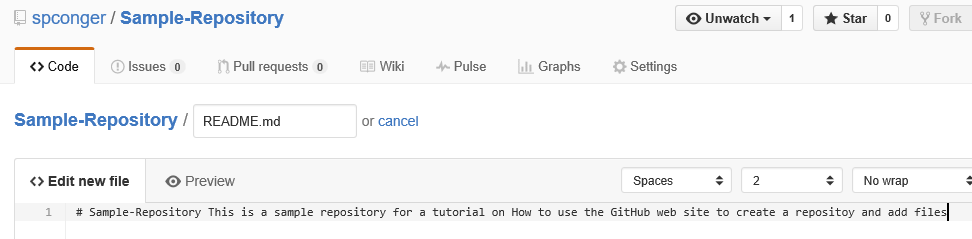
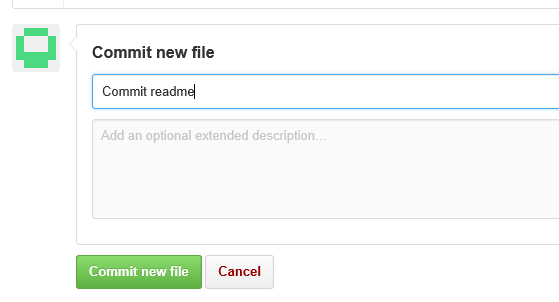
To actually add this file to the repository, we must commit it. The commit is lower on the same web page. We need to give the commit a name and, optionally, a description and then click the commit button.
Now the repository looks like this. We are next going to upload some files
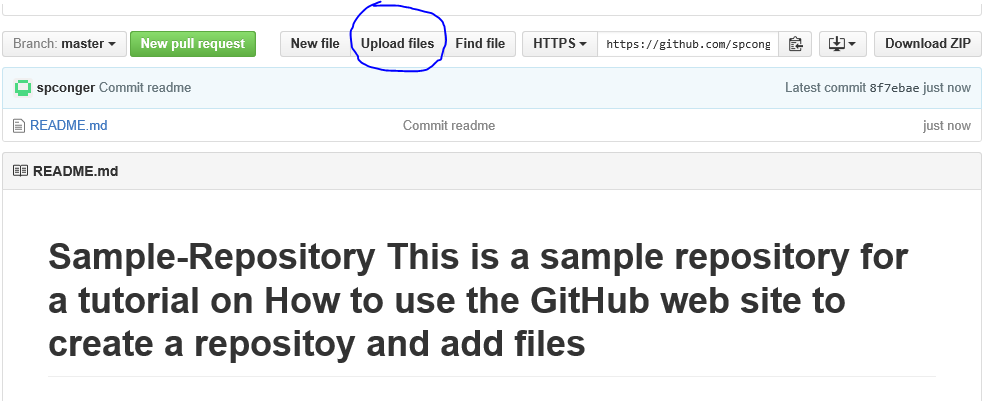
When you choose Upload files, it gives you two options: You can drag the files onto the web page or you can choose files which opens up a file dialog box.

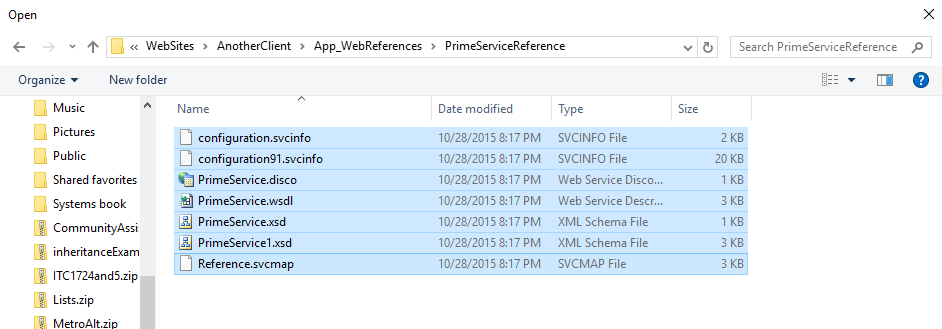
We will choose them. I am going to just get some random files from my Visual Studio directory

I will choose everything, but notice the folder doesn't upload.

We will deal with that in a minute. For now I will commit the files. Here is our repository so far:

There is no way in GitHub to add an empty folder. This is a problem. But you can add a folder if you put something in it, even a dummy text file. So, the project I uploaded has some folders in which service references are stored. If we want the cloned program to work we need those folders. I click on new file and add, not only a file but the path I want.

Commit it. Navigate to the folder you desire and then choose upload files.
Now you have all your files and in their appropriate folders.

Finally, if you wish to delete the repository, click on settings:

Navigate down the page to the "Danger Zone" and choose "Delete Repository." You will receive several warnings and then have to type in the name of the repository before you can delete it.

Using the Windows Client
The web page is not difficult, and the windows client is even easier. First you have to download it. You can get it here: https://desktop.github.com/. Once you have downloaded and installed it. You need to log in to your Github account. Then you can create repositories.
To create a new repository, click the plus sign in the left corner of the application.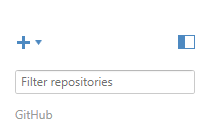
Type in the name of the new Repository.

Click the check mark. This creates a GitHub directory in My Documents. Inside it will be the new Repository Folder.
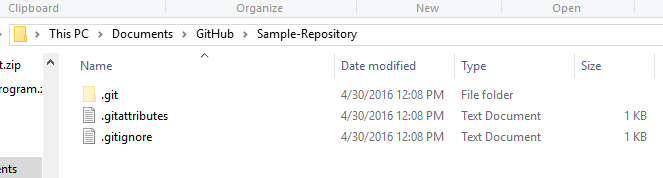
Using Windows file explorer, navigate to the folder with your Program files and copy all the files and directories and paste them into the Github repository folder.
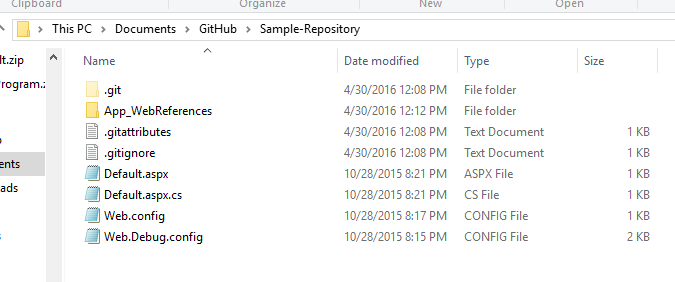
Now return to the Github windows application. Click on the tab "Change" and note that all your files are there. In the summary type a commit statement and then click the check mark by Commit to Master.

Now click on "History." You will see all your files and folders. Click publish to push the files to the web site.

If you check the web site you will see your files are posted there.

If you change files you can use sync to upload the changes to GitHub.
Using the Git Shell
Before beginning this part, I deleted the Sample-repository both on GitHub and on my local machine. Next I created a new directory in My documents called "Sample-Repository." I copied the same files I used before into the directory. I also recreated the Sample-Repository on Github and left it empty.

Next I open the Git Shell. It is downloaded with the Windows Client. I navigate to my folder.

Next I make it a git folder.

Then I add all the files.

Then I do the first commit.

Next I add the remote (GitHub) URL. and verify it.

Now we push the files to the server.

Once again, if you check the web page, you will see the repository is populated with files and folders.
Here are the commands in order
Cd <path to your directory>
git init
git add .
git commit -m "<your commit statement>"
git remote add origin https://github.com/<username>/<repository>
git remote -v
git push origin master
Next we will look at cloning and forking GitHub Two
Thursday, July 30, 2015
Full Text Catalog
use Master
go
Create database FullTextExample
go
Alter Database FullTextExample
Add Filegroup FullTextCatalog
Go
Use FullTextExample
Go
Create Table Test
(
   testID int identity(1,1) primary Key,
   TestText Nvarchar(255)
)
Go
Insert into Test(TestText)
Values('For test to be successful we must have a lot of text'),
('The test was not successful. sad face'),
('there is more than one test that can try a man'),
('Success is a relative term'),
('It is a rare man that is always successful'),
('The root of satisfaction is sad'),
('men want success')

Insert into Test(TestText)
Values('I go to work sadly'),
('I went to work yesterday'),
('I have gone to work every day'),
('going to work')

Select * From test

Create FullText Catalog TestDescription
on Filegroup FullTextCatalog
Go
Create FullText index on Test(TestText)
Key Index [PK__Test__A29BFBA819F32655]
on TestDescription
With Change_tracking auto
go
--find all instances that have the word "sad"
Select TestID, TestText
From Test
Where FreeText(TestText, 'sad')

Select TestID, TestText
From Test
Where FreeText(TestText, 'success')

Select TestID, TestText
From Test
Where FreeText(TestText, 'men')

Select TestID, TestText
From Test
Where FreeText(TestText, 'relative')

Select TestID, TestText
From Test
Where FreeText(TestText, 'Success')

Select TestID, TestText
From Test
Where FreeText(TestText, 'is')

Select TestID, TestText
From Test
Where Contains(TestText, '"success*"')


Select TestID, TestText
From Test
Where Contains(TestText, ' Formsof (Inflectional, see)')

Select TestID, TestText
From Test
Where Contains(TestText, ' Formsof (Inflectional, go)')

Select TestID, TestText
From Test
Where Contains(TestText, 'Near ((work, day), max)')

Select * From Test
Thursday, July 16, 2015
SQL For Security
--see who the employees are
Select *
From Person p
inner join Employee e
on p.PersonKey = e.PersonKey

--new login
Create Login TinaMoon with password='password'

--if you had not already created it
Create schema EmployeeSchema

--user for CommunityAssist
Create user TinaMoon for Login TinaMoon

--new role
 Create role HumanResourcesRole

--Permission for the role
 Grant select, insert, update on Employee to HumanResourcesRole
 Grant select, insert, update on Person
 To HumanResourcesRole
 Grant select, insert, update on PersonAddress to HumanResourcesRole
 Grant Select, insert, update on
 PersonContact to HumanResourcesRole
Grant exec on usp_newDonation to HumanResourcesRole
Grant select on Schema::EmployeeSchema to HumanResourcesRole

--add use to the role
exec sp_addrolemember 'HumanResourcesRole','TinaMoon'
Thursday, August 7, 2014
Basic Security Script
Use Automart
go
--create schema for managers
Create Schema manager
--create an object that belongs to the schema Manager
Go
Create view manager.vw_LocationSummary
 As
 Select LocationName, count(distinct vs.VehicleServiceId) as [Count],
 sum(dbo.fx_GetTotalDue(ServicePrice, DiscountPercent)) as Total
 From Customer.AutoService a
 inner join Employee.VehicleServiceDetail vsd
 on a.AutoServiceID=vsd.AutoServiceID
 inner Join Employee.VehicleService vs
 on vsd.VehicleServiceID=vs.VehicleServiceID
 inner Join Customer.Location loc
 on loc.LocationID=vs.LocationID
 Group by LocationName
 go
 --Create a role for Managers
 create role MangagerRole
 Go
 --provide permission for manager role
 Grant select, update on Schema::manager to ManagerRole

--create a login for managers
Create Login ManagerLogin with password='P@ssw0rd1'

--create a user in automart that is mapped to that login
Create user ManagerUser for Login ManagerLogin

--add the user to the role
exec sys.sp_addrolemember 'managerRole', 'ManagerUser'

--now login you should only see the objects that belong to the schema Manager
--and only have the permissions assigned to the role
Tuesday, August 5, 2014
SQL Injection again
Here is the minimal form
<%@ Page Language="C#" AutoEventWireup="true" CodeFile="Default.aspx.cs" Inherits="_Default" %>

<!DOCTYPE html>

<html xmlns="http://www.w3.org/1999/xhtml">
<head runat="server">
    <title></title>
</head>
<body>
    <form id="form1" runat="server">
    <div>
    <p>Enter your old email address
        <asp:TextBox ID="TextBox1" runat="server"></asp:TextBox>
    </p>
        <p>
            Enter your new email address
            <asp:TextBox ID="TextBox2" runat="server"></asp:TextBox>
        </p>
        <asp:Button ID="Button1" runat="server" Text="Button" OnClick="Button1_Click" />
        <p>
            <asp:Label ID="Label1" runat="server" Text="Label"></asp:Label>
        </p>
    </div>
    </form>
</body>
</html>
Here is the code behind the form
using System;
using System.Collections.Generic;
using System.Linq;
using System.Web;
using System.Web.UI;
using System.Web.UI.WebControls;
using System.Data.SqlClient;

public partial class _Default : System.Web.UI.Page
{
    protected void Page_Load(object sender, EventArgs e)
    {

    }
    protected void Button1_Click(object sender, EventArgs e)
    {
        SqlConnection connect = new SqlConnection
            ("Data source=localhost;initial catalog=Automart;integrated security=true");
        string sql = "Update Customer.RegisteredCustomerb "
            + "Set email= '" + TextBox2.Text + "' Where email ='" + TextBox1.Text +"'";
        SqlCommand cmd = new SqlCommand(sql, connect);
        connect.Open();
        cmd.ExecuteNonQuery();
        connect.Close();


    }
}
One mistake here is to concatenate the text boxes directly into the SQL Statement. Another big mistake is to connect with Admin Permissions. (The integrated security has admin permissions if the current windows user has admin permissions.) The malicious user can enter what they want as a value in the update statement and use -- to comment out any criteria or SQL that follows. in this case the user enters GotYou@hack.com ' -- to cancel out the criteria and set all the email addresses to GotYou@hack.com. The single quote before the dashes is necessary to complete the set statemnent
Here is picture of it running:

Here is an image of the results in SQL Server:

Thursday, July 24, 2014
Full Text Catalog
Here is the Full text stuff we did in class. I am still not sure why SQL server seems to be so allergic to the word "want."
--Full Text Catalog
use Master
Create Database FullTextDatabase
Go
--add a filegroup
Alter Database FullTextDatabase
Add Filegroup FullTextCatalog
go
use FullTextDatabase
go
--add a table with some text
Create Table TextTest
(
   TestId int identity (1,1) primary key,
   TestNotes Nvarchar(255)
)
go
--insert text
Insert into TextTest(TestNotes)
Values('For test to be successful we must have a lot of text'),
('The test was not successful. sad face'),
('there is more than one test that can try a man'),
('Success is a relative term'),
('It is a rare man that is always successful'),
('The root of satisfaction is sad'),
('men want success')
go
Select * From TextTest
go
--create full text catalog
Create FullText Catalog TestDescription
on Filegroup FullTextCatalog
go
--Create a full text index
Create FullText index on textTest(TestNotes)
Key Index [PK__TextTest__8CC33160448E9751]
on TestDescription
With Change_tracking auto
go
--run queries on the full text catalog

--find all instances that have the word "sad"
Select TestID, TestNotes
From TextTest
Where FreeText(TestNotes, 'sad')

--do the same with successful
Select TestID, TestNotes
From TextTest
Where FreeText(TestNotes, 'successful')

Select TestID, TestNotes
From TextTest
Where Contains(TestNotes, '"success"')

Select TestID, TestNotes
From TextTest
Where Contains(TestNotes, '"want"')

--look for any words containing the letters "success"
--the * is a wildcard
Select TestID, TestNotes
From TextTest
Where Contains(TestNotes, '"success*"')

Select TestID, TestNotes
From TextTest
Where Contains(TestNotes, '"want*"')

--looks for all grammatical forms of a word
Select TestID, TestNotes
From TextTest
Where Contains(TestNotes, ' Formsof (Inflectional, Person)')
Saturday, August 3, 2013
Query Optimization
Overview
Query optimization is an important administrative task. But it is a difficult and subtle process. It involves extensive testing of various query structures and indexes and comparing the results.
Sql Server has a built in optimazation engine (see below) that usually but not always provides the best execution plan. You can also look at the actual execution plans and compare statistics when running variations of a query. Sql Server also provides the syntax for getting "Hints" when running queries. Finally you can use the Database Tuning Advisor to get suggestions for what indexes to create.
SQL Servers Query Optimization
Sql Server has a built in query optimization engine. Every time a query is run it goes through the following steps:

Parsing makes sure the query is valid SQL. Binding is mostly about name resolution, getting the table and column names. Optimization generates candidate execution paths and determines which has the least cost in cpu and total execution time.
Query optimization is complex and even the best optimizer doesn't get it right all the time. Still most of the time the optimizer does generate the optimal path.
Looking at a query with the execution plan and statistics
Open SQL Server Management Studio.
Start a new Query window
Select the Actual Execution Plan, and the Include Client Statistics from the toolbar

We are going to use Adventure works because it has more records. Our query will focus on the sales and sales details tables, but we will also bring in the Product name from the product table. We will use the dates and salesperson IDs for criteria.
Here is the query:
Use AdventureWorks2012

Select s.SalesOrderID, OrderDate,
SalesOrderNumber, SalesPersonID,
ORderQty, Name, unitPrice,
 UnitPRiceDiscount
From Sales.SalesOrderHeader s
Inner Join Sales.SalesOrderDetail sd
on s.SalesOrderID=sd.SalesOrderID
inner Join Production.Product p
on p.ProductID=sd.ProductID
Where OrderDate between '2008-1-1' and '2008-1-31'
And SalesPersonID is not null
After you run this click the tab Execution plan. You will have the following output

Notice that it suggests a couple of indexes that are missing--in other words should be created, particularly on SalesOrderDate and SalesPersonID. Notice also that the majority of the cost is incurred processing the clustered indexes--which means going row by row through the table.
Next look at the statistics output

Open a second query window. We are going to create part of the suggested index
Create index ix_salesDate on Sales.SalesOrderHeader(OrderDate)
Now go back and rerun the query. Notice the query results include the new index. Now all the cost is in SalesDetail clustered index. This would suggest we should add another index.
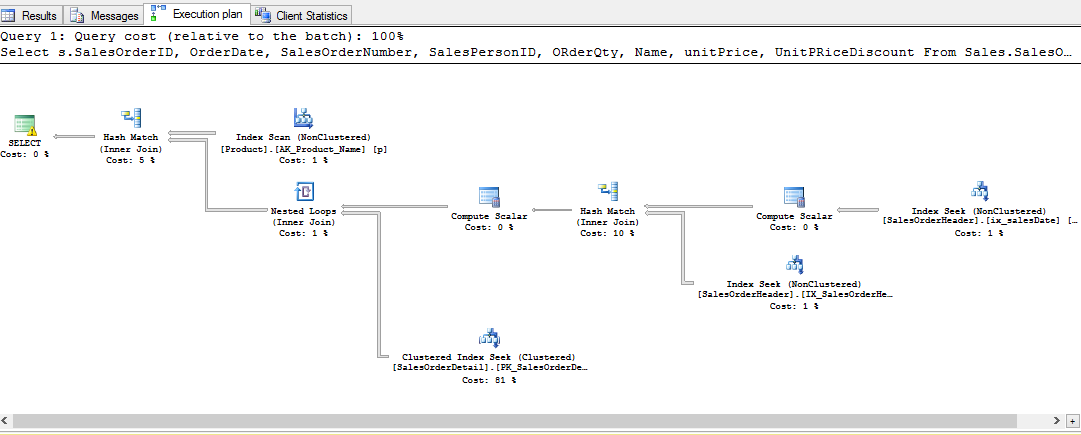
Look at the statistics. Notice, interestingly the total cost has actually gone up and many of the indicators are worse.

This suggests that the next step would be to try an index on SalesPersonID and see if that improves the stats.
Query Hints
Query hints are a set of commands that you can add to a query to suggest an execution path. I am only going to show a couple. Query hints start with the Option keyword and have various arguments in parenthesis. The first example is a merge join which suggest executing the Joins as merges. Here is the code. The only change is in the last line.
Select s.SalesOrderID, OrderDate, SalesOrderNumber, SalesPersonID,
ORderQty, Name, unitPrice, UnitPRiceDiscount
From Sales.SalesOrderHeader s
Inner Join Sales.SalesOrderDetail sd
on s.SalesOrderID=sd.SalesOrderID
inner Join Production.Product p
on p.ProductID=sd.ProductID
Where OrderDate between '2008-1-1' and '2008-1-31'
And SalesPersonID is not null
Option (Merge Join)
Notice the change in results and statistics. Notice the change of joins to merge join and the suggestion to create and index.

Here are the statistics

Most of the other query hints are suggestions to the query optimizer. Look at http://msdn.microsoft.com/en-us/library/ms181714.aspx for a complete descriptions.
The DataBase Engine Tuning Advisor
To start the Tuning advisor go to the TOOLS menu in the Sql Server Management Studio. Connect to Localhost.
In the general tab, select "Plain Cache", and check Automart

Click the Tuning Options Tab. Leave everything as default except the time.
In Advanced Options set the max space to 4 mbs or so

Move it ahead 10 minutes or so.

Click start analysis.
The Tuning adviser has no suggestions. (Automart is too small a database to really analyze.) Here is the report:

Useful links:
Query hints
http://msdn.microsoft.com/en-us/library/ms181714.aspx
Overview of query optimization
https://www.simple-talk.com/sql/sql-training/the-sql-server-query-optimizer/
http://sqlblog.com/blogs/paul_white/archive/2012/04/28/query-optimizer-deep-dive-part-1.aspx
http://sqlblog.com/blogs/paul_white/archive/2012/04/28/query-optimizer-deep-dive-part-2.aspx
Advice
http://exacthelp.blogspot.com/2012/04/sql-server-query-optimization-tips.html
http://blogs.lessthandot.com/index.php/DataMgmt/DBAdmin/sql-server-tuning
Database tuning advisor
Subscribe to:
Posts (Atom)