


Use Community_Assist;

SELECT
  donationDate,
  donationAmount
From
 Donation;

Select * From Person
order by PersonLastName Desc

Select * From Person
order by PersonLastName, PersonFirstName

Select * From Person
order by PersonLastName desc, PersonFirstName

Select * From Person
Where PersonLastName='Tanner'

Select * from PersonAddress

Select * from PersonAddress
Where Not PersonAddressCity='Seattle'--!=, <>

Select * from PersonAddress
Where PersonAddressApt is null

Select * from PersonAddress
Where PersonAddressApt is not null

Select * from Donation
Where DonationDate > '1/1/2016'

Select * from Donation
Where DonationDate between '2/14/2016'
And '2/27/2016'

Select * from Donation
Where DonationAmount >500 -- <, <=, >=

Select * from Person
Where PersonLastName Like 'F%'

Select * from Person
Where PersonLastName Like 'n%n'

Select * from Person
Where PersonLastName Like 'F_r%'

Select Top 5 DonationDate, Donationamount
From Donation
Order by Donationamount desc

Select DonationDate, Donationamount
From Donation
Order by Donationamount desc
Offset 5 rows fetch next 5 rows only

Select Distinct personKey from Donation
order by PersonKey
this is the Deck class that works with the Card class we created earlier.
#Import the Card and the Random
#classes
from CardClass import Card
import random

class Deck:
    def __init__(self):
        #initialize the suits
        self.suits=["d","h","c","s"]
        #initialize the card list
        self.cards=[]
        #call the initializeDeck method
        self.initializeDeck()


    def initializeDeck(self):
        #this method populates the cards List
        #with cards
        #loop through the suits
        for i in range(1,4):
            suit=self.suits[i]
            #loop through the ranks
            for x in range(1,13):
                rank=x
                #create a card
                c=Card(rank,suit)
                #add to list of cards
                self.cards.append(c)

    def getDeck(self):
        #return a deck
        return self.cards

    def shuffleDeck(self):
        #suffle the deck
        randDeck=self.getDeck()
        random.shuffle(randDeck)
        return randDeck

    def deal(self,number):
        #get a shuffled deck
        self.newDeck=self.shuffleDeck()
        #create an empty list for the hand
        self.hand=[]
        #if there are more cards in the deck
        #than the number requestd
        if number < len(self.newDeck):
            #get that number of cards
            #and put them in the hand list
            for i in range(number):
                self.hand.append(self.newDeck[i])
            #remove those cards from the
                #suffled deck
            for c in self.hand:
                self.newDeck.remove(c)
        #return the hand
        return self.hand
here is the code to test the deck:
from Deckclass import Deck

d=Deck()
numberOfHands = 3
for i in range(1, numberOfHands +1):
    hand=d.deal(5)
    for c in hand:
        print("hand " + str(i),c)
Here are the results
Python 3.6.1 (v3.6.1:69c0db5, Mar 21 2017, 17:54:52) [MSC v.1900 32 bit (Intel)] on win32
Type "copyright", "credits" or "license()" for more information.
>>>
====== RESTART: C:/Users/sconger/Documents/Python Programs/TestDeck.py ======
hand 1 3 of spades
hand 1 3 of clubs
hand 1 8 of spades
hand 1 the ace of clubs
hand 1 the queen of spades
hand 2 4 of clubs
hand 2 8 of clubs
hand 2 8 of hearts
hand 2 the jack of spades
hand 2 the ace of spades
hand 3 7 of clubs
hand 3 10 of spades
hand 3 9 of spades
hand 3 5 of clubs
hand 3 10 of hearts
>>>
So I finally figured out how to assign new text to a label on a button click. It requires a pack() command at the label and and a reconfigure() command in the button code
from tkinter import *

class Window(Frame):
    def __init__(self, master=None):
        Frame.__init__(self, master)
        #these set the minimum and maximum size
        #for the parent frame
        master.maxsize(width=200, height=200)
        master.minsize(width=200, height=200)
        self.master=master
        self.init_window()

    def init_window(self):

        self.myLabel=Label(self.master,text="not pressed")
        self.myLabel.place(x=10,y=10)
        #in order to be able to change the label
        #you have to pack it, though packing it seems
        #to disable the placement
        self.myLabel.pack()

        self.submit=Button(self.master,text="submit", command=self.click)
        self.submit.place(x=10,y=35)
        self.submit.pack()


    def click(self):
        #the configure command allows the label
        #to be changed
        self.myLabel.configure(text="button pressed")


root=Tk()
root.geometry=("800x800")

app=Window(root)
root.mainloop()
here is the modification of the first simple tkinter
# this makes a basic window

import tkinter

top=tkinter.Tk()
greeting = tkinter.Label(top, text="Hello World")
greeting.place(x=10, y=25)
top.mainloop()
here is the mileage class
from tkinter import *
from tkinter import messagebox

class Window(Frame):
    def __init__(self, master=None):
        Frame.__init__(self, master)
        self.master=master
        self.init_window()
    def init_window(self):
        self.master.title("Mileage Calculator")

        self.milesLabel=Label(self.master, text="Enter the total Miles")
        self.milesLabel.place(x=10, y=10)

        self.milesEntry=Entry(self.master)
        self.milesEntry.place(x=10, y=30)

        self.gasLabel=Label(self.master, text="Enter the total gallons")
        self.gasLabel.place(x=10, y=50)

        self.gasEntry=Entry(self.master)
        self.gasEntry.place(x=10, y=75)

        self.submit=Button(self.master, text="Submit", command=self.calculate)
        self.submit.place(x=10, y=100)

        #self.message = ""
        #self.resultLabel=Label(self.master, text=self.message)

    def calculate(self):
        miles=float(self.milesEntry.get())
        gallons=float(self.gasEntry.get())
        self.mpg=miles/gallons
        self.message="Your MPG is " + str(self.mpg)
        messagebox.showinfo("Miles Per Gallon", self.message)


root=Tk()
root.geometry=("800x800")

app=Window(root)
root.mainloop()
First I have created the tip class. It should be saved to the same directory as the form. Also to import it the __init__.py file must be in the directory. (just the name it doesn't need any content.). Here is the Tip class:
class Tip:
    def __init__(self, amount, tipPercent, taxPercent):
        self.amount=amount
        self.tipPercent=tipPercent
        self.taxPercent=taxPercent

    def calculateTax(self):
        if self.taxPercent >= 1:
            self.taxPercent=self.taxPercent / 100.0
        self.tax=self.amount * self.taxPercent

    def calculateTip(self):
        if self.tipPercent >=1:
            self.tipPercent=self.tipPercent / 100.0
        self.tip=self.amount * self.tipPercent

    def calculateTotal(self):
        self.total=self.amount + self.tip + self.tax


    def getTax(self):
        return self.tax

    def getTip(self):
        return self.tip

    def getTotal(self):
        return self.total

    def __str__(self):
        self.calculateTax()
        self.calculateTip()
        self.calculateTotal()
        return ("Amount: " + str(self.amount) +
               " Tax: " + str(self.tax) + " Tip: " + str(self.tip) +
               " Total: " + str(self.total))
Now here is the form class. It calls tkinter and the Tip class. I used the message box for the ouput, because it is surprisingly difficult to write to the labels.
from tkinter import *
from Tip import Tip
from tkinter import messagebox

class Window(Frame):
    def __init__(self, master=None):
        Frame.__init__(self, master)
        self.master=master
        self.init_window()

    def init_window(self):
        self.master.title("Tip Calculator")

        self.amountLabel=Label(self.master, text="Enter Amount")
        self.amountLabel.place(x=10, y=15)

        self.amountEntry=Entry(self.master)
        self.amountEntry.place(x=10, y=35)

        self.taxLabel=Label(self.master, text="Enter tax Percent (no % sign)")
        self.taxLabel.place(x=10,y=55)

        self.taxEntry=Entry(self.master)
        self.taxEntry.place(x=10, y=75)

        self.tipLabel=Label(self.master, text="Enter tip Percent (no % sign)")
        self.tipLabel.place(x=10,y=105)

        self.tipEntry=Entry(self.master)
        self.tipEntry.place(x=10, y=125)

        self.submit=Button(self.master, text="Submit", command=self.onClick)
        self.submit.place(x=10,y=150)

    def onClick(self):
        amount=float(self.amountEntry.get())
        taxPerc=float(self.taxEntry.get())
        tipPerc=float(self.tipEntry.get())
        t=Tip(amount, tipPerc, taxPerc)
        #message = print(t)
        messagebox.showinfo("total due", t)


root=Tk()
root.geometry=("800x800")

app=Window(root)
root.mainloop()
There are many many improvements and refinements that could be made on this form, but it provides a basic template. I used absolute positioning, but grid positioning is more flexible. You should look it up and try to implement it.
The following code is all that is needed to make a simple window
# this makes a basic window

import tkinter

top=tkinter.Tk()
top.mainloop()
Here is the form it makes.

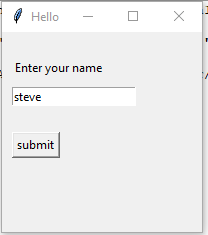
Let's do a simple hello world. We will make the window a class that inherits from Frame. The __init__ function calls the parent __init__function. We add a Label, an Entry (text box) and a Button. When clicked the button produces a message box that says "Hello," plus the name entered into the Entry control. Here is the complete code with comments:
# this makes a basic window

from tkinter import *
from tkinter import messagebox


class Window(Frame):
    #we are inheriting from frame
    #and calling its init function
    def __init__(self, master=None):
        Frame.__init__(self, master)
        self.master=master
        self.init_window()

    #set up the window
    def init_window(self):
        #set title of the window
        self.master.title("Hello")
        #self.pack(fill=BOTH, expand=1)
        # a label to prompt the user
        self.prompt=Label(self.master, text="Enter your name")
        #using absolute placement
        self.prompt.place(x=10,y=25)
        #creating a text box
        self.nameEntry=Entry(self.master)
        self.nameEntry.place(x=10,y=55)
        #adding a button
        self.submit=Button(self.master, text="submit", command=self.hello)
        self.submit.place(x=10,y=100)
        #self.result = Label(self.master,text="")
        #self.result.place(x=10, y=360)
        #self.result.pack()

    def hello(self):
        greeting = "Hello, " + self.nameEntry.get()
        messagebox.showinfo("hello", greeting)


root=Tk()
root.geometry=("500x400")

app=Window(root)
root.mainloop()
Here is the form with a name entered.
Here is the Messagebox

